
Planning & Selling
Trading View
Pivot incoming stock by produce, calibre, variety and pack format, with QC scores and drill-down to packing lines and pre-allocation.
4 min readLast updated
Goal
Answer one question for your sales team: “What stock do I have coming in, broken down by calibre, variety, or pack format — and how much of it is already promised to someone?”
Trading View aggregates every packing line from your active shipments into a single matrix, and lets you allocate boxes without leaving it.
Before you start
- Active shipments with extracted packing data. The matrix is built from packing lines, so shipments without them contribute nothing.
- Navigate to Trading View in the main menu, or visit
/:org-slug/trading_view.
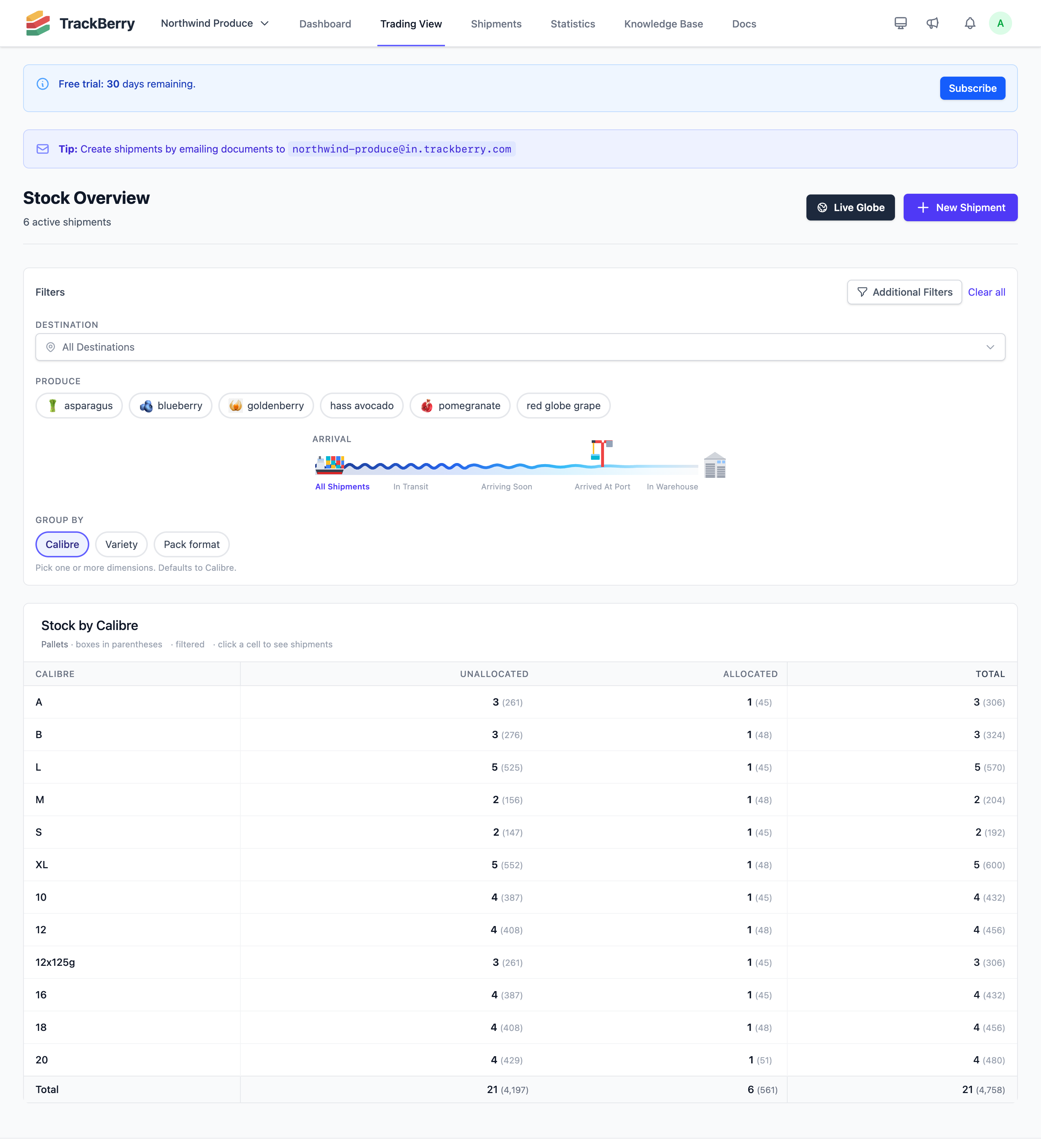
The Stock Matrix
The matrix table shows one row per unique combination of your chosen grouping dimensions (produce by default, calibre once you pick a produce), with four columns:
| Column | Description |
|---|---|
| Unallocated | Pallets and boxes not yet assigned to a buyer |
| Allocated | Pallets and boxes with pre-allocations |
| Total | Combined count |
| QC | Average QC inspection score (1–9) of the row’s inspected pallets, weighted by boxes, and the share of boxes that were inspected |
A pallet inspected more than once counts with its latest score. A row with no inspected pallet shows a dash in the QC column.
A footer row shows totals across all rows. The header indicates the number of active shipments included.
Grouping Dimensions
You can group the matrix by one or more of:
- Produce (default until you pick a produce)
- Calibre (default once you pick a produce) — size grading
- Variety — produce variety (e.g., Red Globe, Hass)
- Pack format — packaging type
Calibre is only available after you pick a produce in the Produce filter, because a calibre means something different for each produce: a 14 avocado and a 14 mm blueberry are not the same size. If you pick several produce, each calibre row is also labeled with its produce.
Calibres are normalized, so the different ways packers write the same size land on one row: 12+, 12 + and +12mm all show as 12+, ST and STD as STD, M and MD as M, and a citrus count with its layers, such as 113/4, as 113. Lines without a calibre are grouped under Not specified, at the bottom.
When multiple dimensions are selected, each row shows a combined label like 16 · Red Globe · 8.2kg. Calibre values sort by size, with word grades (S, M, L, XL) after the numbers; the other dimensions sort alphabetically.
Filters
All filters apply automatically — no submit button needed.
Destination
A hierarchical country → port dropdown. Check a country to select all its ports, or expand to pick individual ports. The filter applies to both the Trading View and the Dashboard.
Produce
Multi-select buttons with produce icons. Shows only shipments containing the selected produce types, and only the selected produce from those shipments: a container of avocados and mandarins counts just its avocados under an Avocado filter. Variety, category, GGN and pack format filters work the same way.
Arrival
A slider with five positions, running from the open sea on the left to your warehouse on the right. Drag it right to narrow the list to cargo that is closer to your warehouse:
| Position | Meaning |
|---|---|
| All Shipments (far left) | No arrival filter |
| In Transit | Everything actively in transit, including shipments with no ETA set yet |
| Arriving Soon | Expected to arrive within the next 4 days |
| Arrived At Port | Arrived at port, or whose ETA has passed |
| In Warehouse (far right) | Only shipments confirmed received at your warehouse |
Clear All
A Clear all button resets every filter to its default.
Cell Drill-down
Click any Unallocated or Allocated cell to expand a detail panel below the table. The panel shows every packing line that contributes to that cell, with:
| Column | Content |
|---|---|
| Container | Container number(s), plus badges: ❄️ frozen, 🌿 organic (🌱 if mixed), 📝 notes |
| Destination | Port and country |
| Arrival | ETA or “Arrived” badge |
| Pallet | Pallet number |
| Boxes | Box count for this line |
| Allocate | Pre-allocation button — click to assign boxes to a buyer |
| Open → | Link to the full shipment page |
Pre-allocation from the Trading View
From the drill-down panel, you can manage pre-allocations inline, using the same popover as on the shipment page. See the Pallet Pre-allocation guide for details.
The allocation status shows as:
| Badge | Meaning |
|---|---|
| Allocate (gray) | No allocations yet |
| 5/20 (amber) | Partially allocated |
| Full (green) | All boxes assigned |