
Receiving Shipments
Receiving Shipments
Learn how to receive, process, and manage shipments in Trackberry.
15 min readLast updated
Goal
Get a shipment into Trackberry, understand what it extracted from your documents, and approve or correct the result.
A shipment tracks a batch of goods from the exporter to destination, together with its documents, packing data, and check results. Trackberry reads fresh produce (pallets of boxes) and general goods (part-numbered invoice lines and carton packing lists). Choose which one you import with What you import under General in Organization Settings. It decides how invoices and packing lists are read, and which document checks run. General goods organizations also get a product catalogue.
Before you start
- A packing list, ideally Excel (
.xlsx). PDFs and images work, but Excel extracts most reliably — see why below. - An approved sender, if documents arrive by email. Mail from unknown addresses is flagged for review rather than processed silently — see Managing Your Team.
- Checks configured, if you want validation to run on arrival. Defaults are fine to start with; see Document Checks.
Creating a Shipment
Via Email
The simplest way to receive a shipment is through email:
- Your approved senders email packing lists and quality documents to your organization’s inbox
- Trackberry automatically creates a shipment and attaches the documents
- Data extraction begins immediately
- You receive a notification when the data is ready for review
Trackberry also stores the email body itself — not just the attachments. If the email contains status updates, arrival notices, or delay information, Trackberry uses AI to classify and summarize it. See the Receiving Documents by Email guide for details.
Email threading: When someone replies to an existing shipment email thread, the new documents and messages are automatically attached to the correct shipment. If a forwarder sends an out-of-thread email that names the transport reference (B/L or AWB number) or a container number, Trackberry matches it to the right shipment too. See How Emails Are Matched to Shipments.
Via Direct Upload
To manually create a shipment:
- Navigate to Shipments in your organization menu
- Click New Shipment
- Fill in the shipment details (reference, vessel, origin, etc.)
- Drag and drop your documents into the upload area
- Click Create Shipment
Supported file formats:
| Format | Extension | Processing Method |
|---|---|---|
| Excel | .xlsx |
Direct cell reading and deterministic parsing |
| PDF (digital) | .pdf |
Table detection and deterministic parsing, with intelligent fallback |
| PDF (scanned) | .pdf |
OCR followed by the same parsing pipeline |
| Image | .jpg, .png |
Vision-based extraction |
The upload button also accepts .xls and .csv files. Email attachments can be PDF, JPEG, PNG, TIFF, CSV, XLSX or XLS; other attachments are skipped.
Each file can be up to 50 MB. Before anything is read, every file goes through a security check: its size, whether its content matches its file type, its file name, and a virus scan. A file that fails is never read and shows Blocked — failed security checks. Hover the label to see the reason.
A file with a virus shows Infected — quarantined. Ask the sender for a clean copy of either.
Tip: Ask your suppliers to declare their totals on the packing list — total pallets, total boxes and total net weight, at the foot of the sheet. Trackberry’s reconciliation checks compare the extracted rows against those figures. That is how a misread gets caught before you see it, instead of after you have sold from it. A sheet with no totals still imports, but there is nothing to check it against, so the Box Counts Match and Weight Totals Match checks are skipped. Most packhouse software prints these totals already.
Tip: When possible, ask your suppliers to send packing lists as Excel (
.xlsx) files rather than PDFs. Excel files produce the most reliable extraction results because Trackberry reads cell values directly — there’s no need for table detection, OCR, or guessing column boundaries. PDFs work well too, but they require an extra step of reconstructing the table structure from the page layout, which can occasionally lead to misaligned data.
Trackberry also recognizes these document types:
- Packing List — Pallet details, produce, calibre, box counts, weights, organic/conventional classification, GGN (GLOBALG.A.P. Number)
- Invoice — Commercial invoice line items and pricing
- Transport Document — Bill of Lading (B/L) or Air Waybill (AWB), cargo type (ambient/reefer/frozen), temperature settings
- Courier Waybill — Waybills from DHL, FedEx, UPS and 12 other express and parcel couriers, which usually travel with the original paperwork rather than the cargo
- Booking — A forwarder’s shipping order or a carrier’s booking confirmation
- Pre-alert — A forwarder’s advance notice of an incoming shipment, with the house B/L, forwarder reference and containers
- Arrival Notice — A carrier’s or forwarder’s notice that the cargo is about to arrive
- Phytosanitary Certificate — Plant health inspection certificates
- Certificate of Origin — Proof of where the produce was grown
- Other Certificate — Other declarations and analyses, such as a pesticide residue report or a wood packaging declaration
- Warehouse Receipt — Receipt confirming goods received at warehouse. When it lists the pallets, Trackberry compares it with the packing list (see Comparing a Warehouse Receipt with the Packing List)
- Quality Inspection Report — Third-party inspection results, per-pallet scores and defects (see Quality Inspection Reports)
Manually Recategorizing a Document
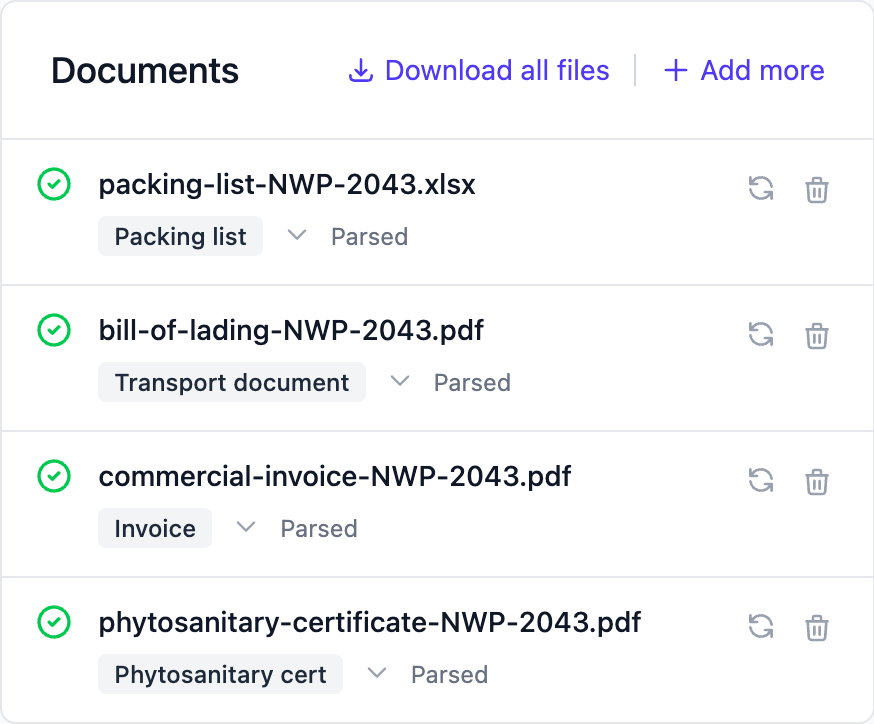
Automatic classification is usually right, but an unusual document, or one with an ambiguous filename, can occasionally end up in the wrong category (e.g. a delivery note classified as a transport document). Admins can correct this directly:
- Open the shipment and find the document
- Click the small chevron next to its type (Change document category)
- Choose the correct type under Change category
- Confirm, and Trackberry re-extracts the document as the new type
Re-extraction runs the same pipeline used for a first-time upload. Any data the document contains (pallets, container info, invoice lines, etc.) is populated under its corrected type, and shipment checks re-run automatically afterwards.
How Document Processing Works
When a document is uploaded, Trackberry processes it through a multi-stage pipeline designed to be as fast and self-reliant as possible. The system prioritizes deterministic, local parsing that runs entirely on Trackberry’s own infrastructure — and only calls external AI services when the document format requires it.
Stage 1: Deterministic Parser
For PDFs and Excel files, Trackberry first extracts data using its own parser — no external services involved:
- Table extraction — For digital PDFs, tables and cell boundaries are detected automatically. For Excel files, cells are read directly. The result is a clean, structured table.
- Column mapping — The parser analyzes column headers to identify which columns contain pallet numbers, produce names, calibre, box counts, weights, etc.
- Data extraction — Rows are parsed into structured pallet records. Supports both standard layouts (one row per item) and pivot layouts (calibres as column headers).
If all required fields are found, extraction is complete — no external calls, near-instant processing.
Stage 2: Targeted Assistance
If the deterministic parser extracts most of the data but a few fields remain incomplete, Trackberry makes small, targeted requests to fill in the gaps:
- Individual field extraction — Instead of processing the whole document externally, only a small snippet of context is sent with a focused question for the specific missing field (e.g., “What is the container number?”)
- Column disambiguation — When headers are ambiguous, a quick call resolves which column maps to which field
- Uniform field fill — Fields like produce type or box weight that are the same for every row are resolved with a single request
This keeps the reliance on external services low while still handling unusual cases.
Stage 3: Full Extraction (Last Resort)
Only when local parsing and targeted assistance both fall short does Trackberry send the full document content for external processing:
- Text-based documents — The entire extracted text is sent with a comprehensive extraction prompt
- Images and scanned PDFs — The file is processed using a vision model that can read directly from the image
- Multiple provider fallback — If one provider is unavailable, the system automatically tries the next
This lets extraction read most document formats, including layouts it has not seen before.
Verification
After extraction, Trackberry runs its document checks. When a document’s own totals don’t reconcile, it also runs an automatic AI cross-check: a secondary model re-reads the original and corrects misread figures before you see them. While this runs, the document shows a short progress label (e.g. “Checking for errors…”, then “Discrepancies found — re-checking with secondary AI…”) and the shipment shows a “Verifying documents…” status in place of preliminary results. Only the final, settled check results are shown. See the Document Checks guide for details.
Reviewing Shipments
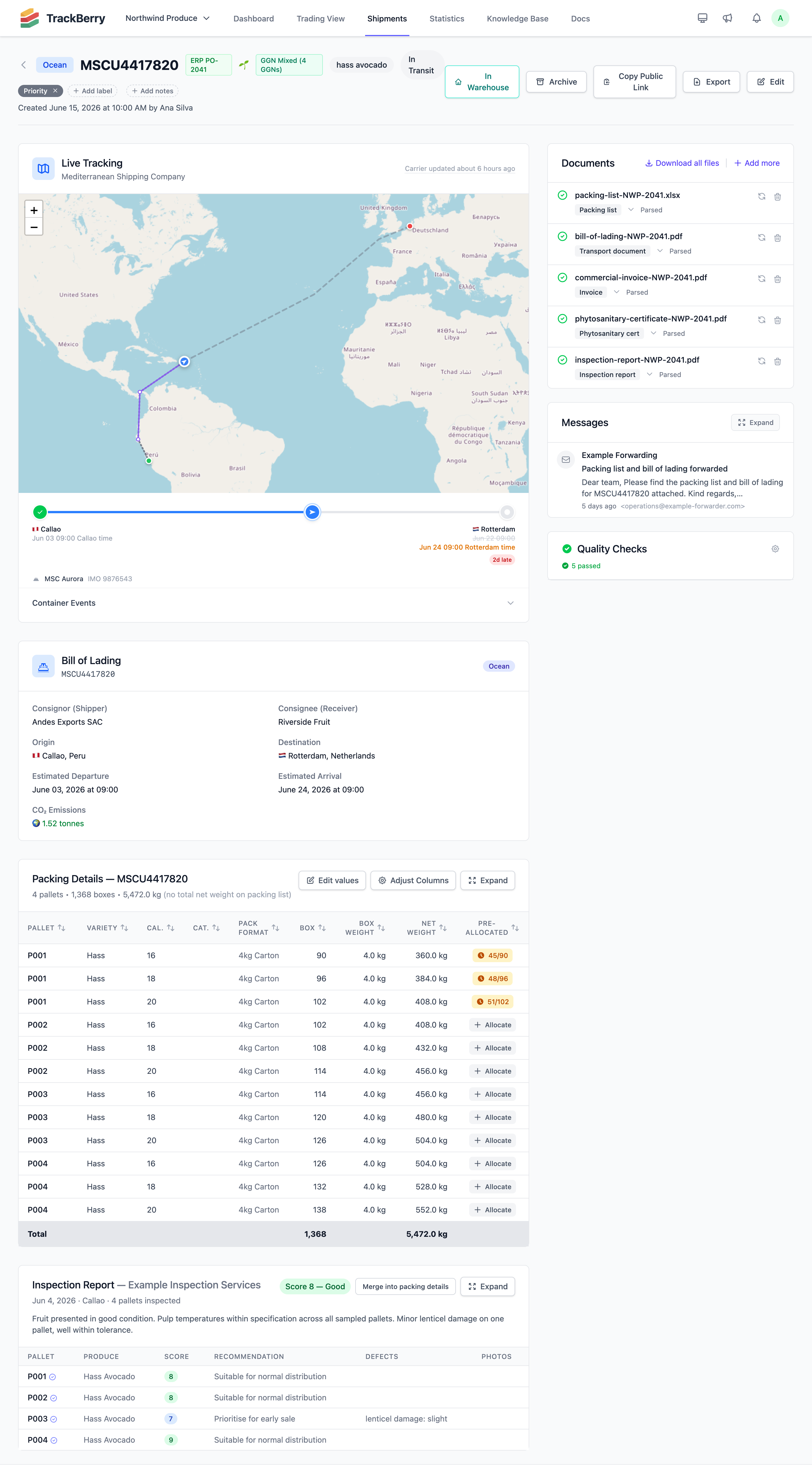
Once processing is complete, you’ll see:
- Pallet table — All extracted pallets with their attributes
- Check results — Pass/warning/fail status for each document check
- Document viewer — Original documents for reference
- Produce badges — Color-coded produce type badges appear automatically; for mixed produce shipments (multiple produce types), a dedicated produce column is shown
- Badges — ❄️ for frozen cargo, 🌿/🌱 for organic produce, and GGN certification numbers when present
- Notes — A free-text area to add internal comments about the shipment (auto-saves as you type)
A few things make the page quicker to work with:
- Copy an identifier. Hover a container number, house B/L, ERP or forwarder reference, or a part number, and a Copy chip appears. Click it to copy the value.
- Copy the packing table. Copy table copies the visible rows, in their current sort order, with a header row, ready to paste into a spreadsheet. If you have selected rows, the button reads Copy N rows and copies only those.
- Search and widen long tables. The invoice lines and general goods packing tables have a Search lines box and an Expand button that hides the sidebar so the table uses the full page width. The packing details table has Expand too.
Tip: If a packing list in Excel has an active filter that hides some rows, Trackberry skips those rows. That is how a sheet shared by two containers, filtered to one of them, imports as a single container. Rows hidden by hand are still read.
Approving a Shipment
Approval applies to shipments that arrived by email from a sender who is not on your approved senders list. They wait in an amber Pending Approval section at the top of the shipments list, on the Active tab. Each card shows the sender, the subject, the number of attachments and how long ago it arrived. Click View to read the email and open its documents first.
Nothing has been read, tracked or charged yet. Choose one of:
- Approve & Whitelist approves the shipment and adds that exact sender address to your approved senders, so their next emails skip the queue.
- Approve Once approves this shipment only.
Result: the shipment moves to Draft, its documents are processed, tracking starts and your team is notified. From there it follows the normal lifecycle.
Two other buttons appear on held shipments. It’s Ours releases a shipment held because its bill of lading names another company. Update billing appears when the shipment is held because your organization’s billing is blocked. See Receiving Documents by Email for both.
Approval doesn’t depend on checks. A shipment with failing checks can still be approved. Checks do matter later: a failing check keeps a draft from validating. See Document Checks.
Rejecting a Shipment
Click Reject on the pending card and confirm. Rejecting deletes the shipment and all its documents. Nobody is notified, including the sender, so contact them yourself if you need a corrected resend.
Comparing a Warehouse Receipt with the Packing List
For fresh produce, when a warehouse receipt lists the pallets it took in, Trackberry holds it up against the packing list, pallet by pallet. Pallets are matched on the supplier’s pallet number, which has to be identical on both sides, then compared by calibre, class and boxes. A receipt that carries no pallet breakdown, such as an air cargo custody slip, is left out, and nothing is flagged.
The result shows in three places:
- A check. Warehouse Receipt Matches Packing List fails or warns on the shipment when the two disagree.
- A Received column in the packing details table, with one marker per pallet: Matches the warehouse receipt, Not received, Received, box count not stated, or Differs from the warehouse receipt followed by the reason. Click a marker that flags a difference to open that pallet on the comparison page. The column appears only when a receipt can be compared, and never on the public tracking page.
- A comparison page, titled Packing list vs warehouse receipt. Open it with Compare with the packing list under the receipt in the Documents card, or with Compare pallets on the check. The Differences tab lists only the pallets that disagree, with the packing list and receipt figures side by side. Show all N pallets lists every pallet, and Show only pallets with differences brings the short list back. The Warehouse receipt tab shows the receipt as it was read.
A pallet is one of these: Matches, Different box count, Different calibre, Different class, Missing at the warehouse, Not on the packing list, Boxes moved to another warehouse pallet, Restacked at the warehouse or Received, box count not stated. When the warehouse restacked boxes onto pallets of its own, the page also shows the boxes per calibre across the whole container, so you can see whether every box is still there.
Document Actions
Click a document’s file name to open it in a new tab. The ⋯ menu next to it holds the rest:
| Action | Who | What it does |
|---|---|---|
| Report a problem | Everyone except viewers | Asks the sender for a corrected file. See Document Corrections. |
| Re-extract data | Admins | Reads the document again and replaces the data extracted before. |
| Not part of this shipment | Everyone except viewers | Moves the file out of the shipment’s documents. It stays available as reference material, and nothing is extracted from it. |
| Delete | Everyone except viewers | Deletes the document. |
Report a problem and Re-extract data are not offered on a file blocked by the security check.
Superseding Documents
Replacing a Document
If a sender sends an updated version of a document:
- Open the shipment and click Edit
- Find the outdated document and click Replace
- Choose the new file
- The old document is marked as superseded and kept
- Data is re-extracted from the new document, and checks re-run automatically
A document that arrives later by email can also supersede an earlier one. Under the new document, a “Superseded” line names the file it replaced and how many things changed. Open it to see each change, for example a net weight or a pallet added. See Document Corrections for the full list.
Every shipment’s documents, including earlier versions, can also be browsed and downloaded together from the Document Library.
Automatic Packing List Deduplication
When a shipment receives multiple packing lists from different documents, Trackberry automatically compares them and keeps the most detailed version. This commonly happens when:
- A supplier sends both a summary packing list and a detailed one
- A packing list arrives via email and is also uploaded manually
- A different document type (e.g., a REMITO or delivery note) is classified as a packing list because it contains pallet-level data
How it works:
- After each packing list import, Trackberry counts the number of packing lines (individual rows of pallet data) in the new packing list. It compares that count against any existing packing lists on the same shipment
- The packing list with more lines is considered more detailed — it typically contains more granular calibre, variety, or per-pallet breakdowns
- The less detailed document is automatically marked as superseded
- Both documents remain visible on the shipment, but only the current (non-superseded) packing list contributes pallet data
Example: A shipment has a PDF packing list with 4 summarized pallets (4 packing lines). Later, an Excel REMITO arrives with 20 pallets broken down by calibre and variety (22 packing lines). Trackberry automatically supersedes the PDF and uses the more detailed Excel data.
One Shipment per Container
By default a bill of lading with several containers is one shipment. If you close, claim or sell each container on its own, change that. An admin opens Organization Settings, goes to Shipments, and under Shipment unit chooses One shipment per container. A bill of lading with several containers then becomes one shipment per container, so each can be closed on its own. The same setting decides what you are billed for: each bill of lading, or each container.
The setting applies to shipments that arrive after you change it. What happens for a multi-container B/L:
- The shipment is created as usual. Once the B/L is read, each additional container moves to a shipment of its own, with the same route, dates and parties. If the B/L is late, the packing lists and per-container documents can split the shipment once they name at least two valid containers. LCL shipments are never split.
- Documents that cover the whole B/L, such as the B/L itself and an invoice listing every container, are copied to each container’s shipment.
- A phytosanitary certificate, certificate of origin or invoice that names one container is filed on that container’s shipment.
- Tracking is registered once for the B/L. Each container keeps its own events, free time and ETA.
The Documents Assigned to a Container check catches a certificate or invoice that doesn’t say which container it is for. Fix it from the document’s ⋯ menu with Move to and the container it belongs to.
The same card also asks how to export an invoice that several containers share. Export the whole invoice on the first container leaves the other containers without it. Split it across the containers gives each container its share, by the invoice lines that name it or by its boxes on the packing list.
Marking a Shipment as In Warehouse
Once a container has been physically received at your warehouse or cold store, you can mark the shipment as In Warehouse. This signals to your team that the produce is available for sale.
Via Email (Automatic)
When a freight forwarder sends a notification confirming the container is at their facility (e.g. “container in our warehouse”, “cargo received”, “available for collection”), Trackberry’s AI detects this and either:
- Auto-applies the status change if the shipment is currently Arrived or In Transit
- Suggests the change with a “Mark as In Warehouse” button on the email message if auto-apply conditions aren’t met
Via the Shipment Page (Manual)
Admins can mark any live shipment as In Warehouse directly:
- Open the shipment
- Click the In Warehouse button in the top-right action bar
- Confirm the prompt
The button is visible to admins on any shipment that isn’t already In Warehouse, pending approval, or in an error state.
Arrival Slider
The In Warehouse status also integrates with the arrival slider on the Dashboard and Trading View. Dragging the slider all the way to the right filters to show only shipments currently in warehouse — useful for your sales team to see what’s immediately available.