
Customizing & Admin
Companies
See every supplier, forwarder and customer once, however their name is spelled on documents, and tell Trackberry which companies are your own.
6 min readPublished
Goal
Keep one entry for each supplier, forwarder and customer on your shipments, even though documents spell the same company a dozen ways. Tell Trackberry which companies are yours, so it can work out whether a shipment is an import, an export or a transfer inside your group.
Before you start
- Nothing to configure. Companies fill themselves from your documents. Open the user menu under your avatar and choose Companies.
- Any member except a Viewer can add and edit companies, correct their names and say “this is us”. Viewers can browse the list.
- An admin is needed to delete a company, merge two, mark a company as one of yours and choose your main company. These cannot be undone, or change how your shipments are classified.
How companies appear
You do not have to create them. When a document names a company, Trackberry looks its name up against the names it already knows and either finds the company or creates a new entry.
- Names are compared loosely. Capitals, accents and the legal form at the end do not make two names different: “PROGUM CO., LTD” and “Progum Co Ltd” are one company. Names in other scripts are kept apart.
- The supplier comes from the best source, not whatever consignor was written: the invoice seller first, then the house B/L shipper, then the packing list, pre-alert or booking. It is never the master B/L, whose shipper on a consolidation is the origin consolidator. When a consolidation has two sellers, the shipment shows Multiple suppliers and each line is matched against its own document’s supplier.
- A company known only as a forwarder is never made a supplier. Its name goes to the Review tab instead.
- A person’s choice wins. A choice made by a person is not overwritten when documents are read again.
Consignor, consignee and forwarder on a shipment link to their company, and so do the shipments list and the dashboard.
The Companies page
The tabs filter by role: All, Suppliers, Forwarders, Customers, and Review. Search by name or by any of a company’s other names. Your own companies come first, with the main one leading, marked Your company.
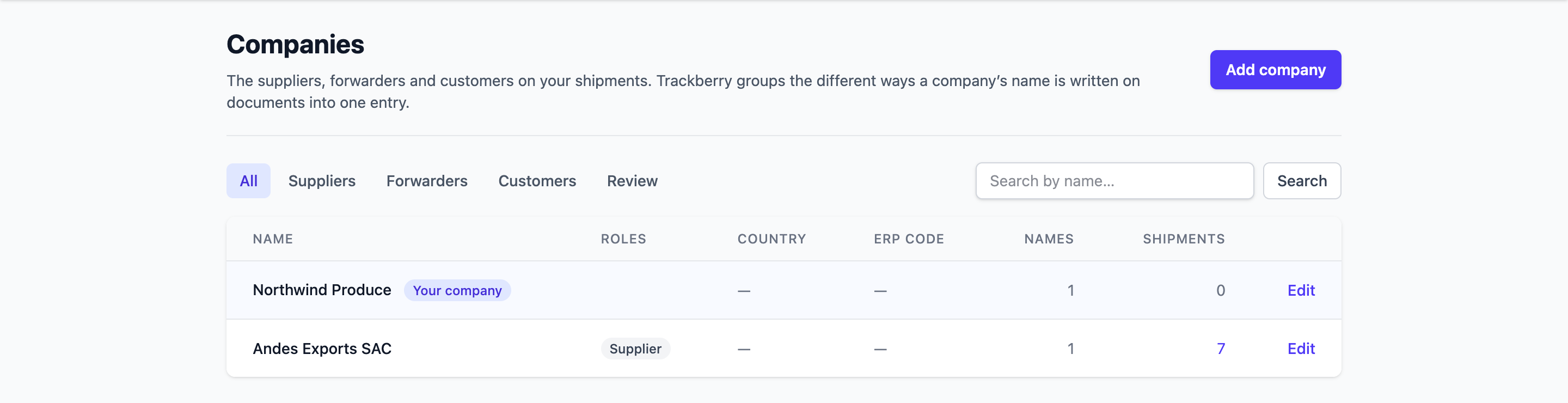
Each row shows the company’s roles, country, ERP code, how many names it goes by and how many shipments it has. See [name]‘s shipments opens your shipments list filtered to that company.
Add or edit a company
- Choose Add company, or Edit on a row.
- Set the Name, the Country and the ERP code. The ERP code is the code your accounting or ERP system uses for the company. Catalogue imports use it to recognize the supplier column. See Product Catalogue.
- Tick its Roles: Supplier, Forwarder, Customer. A company can have several. Your own companies have none.
- Choose Save.
The company page lists every name documents have used for it, under Names. Any document with one of those names is matched to this company. If a name was mapped to the wrong company, choose Remove beside it. The company’s current name cannot be removed: rename the company first. Documents that use a removed name create a new company the next time.
Merge two companies
When one company is split in two entries, open one and use Merge into another company. Find the other in the list and choose Merge. This is for admins.
The company you merge is deleted. Its names, its shipments and its supplier references move to the one you picked, so the next document under either name lands on the survivor. Merged into one of your own companies, its supplier references are deleted and its shipments are worked out again. If both companies have the same part number, only the better reference stays. This cannot be undone. One of your own companies can only be merged into another of your own.
Delete a company
Delete company is for admins and cannot be undone. Its shipments keep their text and are unlinked from it, and its supplier references are deleted with it. If documents name it again it comes back. To combine two spellings, merge instead. Your own company cannot be deleted.
Your own companies
Trackberry needs to know who you are, or it would take your own company for a supplier. Your organization starts with one company named after it, your main company. From there the direction of each shipment is worked out:
- When the consignor is you, the shipment is an export, and the consignee becomes its customer.
- When the consignee is you, it is an import, and the consignor side gives the supplier.
The Review tab
Review lists names on shipments where neither side matched one of your companies. One of them is often you under a name Trackberry has not met, such as “JIOrings S.L.” for “JIORINGS SL”. Choose This is us beside it and every shipment carrying that name is worked out again: an export where it is the consignor, an import where it is the consignee. The name is added to your main company.
If the name already belongs to another company, or fits several of yours, only an admin can settle it, and the page tells you to ask one. An admin can then choose This is one of our companies for the right one.
A group of companies
A group can be one organization with several legal entities, for example a BV, a Ltd and an SL. Open each sister company’s page and choose This is one of our companies. Each keeps its own name, names, country and ERP code.
Names are told apart by their full name with the legal form, then by country: the BV’s documents land on the BV, not on the SL. A bare name that still fits several of your companies goes to Review for a person to choose instead of a guess.
A shipment from one of your companies to another is intra-group:
- The sending company is its supplier, and it has no customer.
- It does not count towards that company’s supplier figures.
- It carries an Intra-group badge on the shipment page, and the company’s page shows N intra-group shipments.
Marking or unmarking a company works the affected shipments out again, so give it a few moments to update. A person’s choice on a shipment is kept.
The main company
The main company is where names added with This is us go, and where your organization’s own name belongs. When none is set, it is the company named after your organization, matched with its legal form. Trackberry never promotes a sister company on its own. An admin can choose Make this our main company on any of your own companies. The main company cannot be unmarked or deleted. Use Not one of our companies on the others if you marked one by mistake.
FAQ
The same supplier appears twice. What do I do?
Ask an admin to merge them: open the one you want to lose, choose Merge into another company and pick the other. Both spellings are then recognized as the survivor.
Why is a name in Review when it is clearly us?
Review lists every consignor and consignee on shipments where nothing matched your companies. If it is you, choose This is us. If you are not an admin and the name already belongs to a company, ask one to mark that company as yours.
Can a company be a supplier and a customer?
Yes. The roles are tick boxes and you can tick more than one. Your own companies carry none.
Why did a shipment lose its customer?
A shipment between two of your own companies is intra-group, and an intra-group shipment has a supplier and no customer.
Does deleting a company delete its shipments?
No. The shipments keep the names as text and are unlinked from the company.
Can a Viewer add a company?
No. Viewers can browse the list and open a company’s shipments, but not change anything.
For the people side of your organization, see Managing Your Team.