
Tracking Shipments
Shipment Monitoring
How Trackberry watches for shipments that have stopped making progress, and where those alerts show up.
7 min readLast updated
Goal
Find out which shipments have stopped making progress, and why, without checking each one by hand.
Before you start
- Nothing to configure. Monitoring runs automatically on every active shipment and costs nothing.
- Notification preferences, if you want alerts by push or email rather than just in-app. See Notifications.
What monitoring is for
Quality checks answer “does the paperwork add up?”. Monitoring answers a different question: “has this shipment stopped moving?”
Every day Trackberry sweeps your active shipments and looks for the ways a shipment can go wrong without anyone noticing: a carrier that stopped publishing, an ETA that has come and gone, a container sitting at the terminal, a draft nobody validated. Each problem it finds becomes an alert, and alerts appear in three places: the Health column on the shipments list, the Needs attention tab, and your notifications.
Nothing here changes your data. Monitoring only ever reads and reports — a person decides what to do about it.
Where Alerts Appear
The Health column
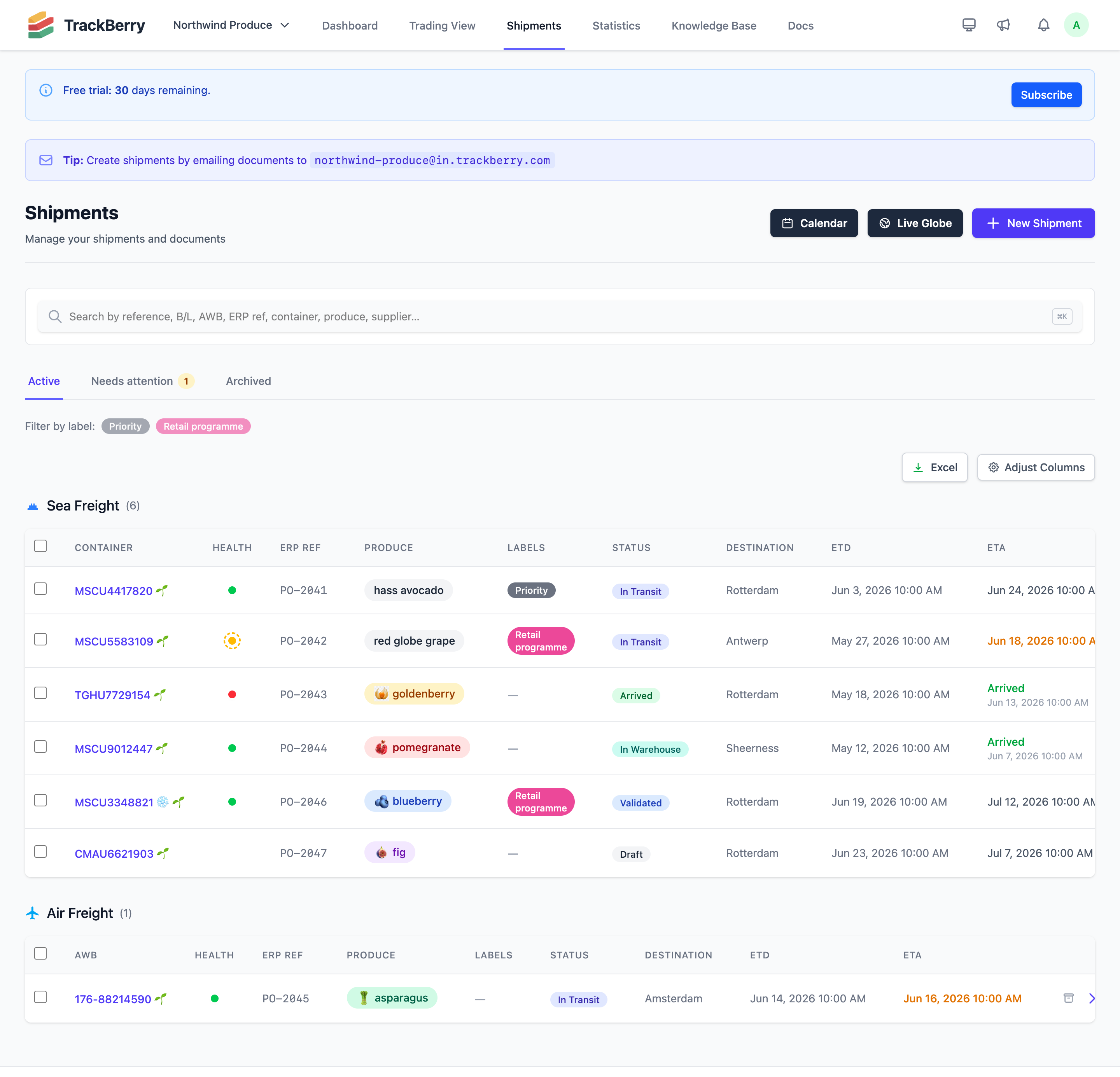
Every row on the shipments list has a Health dot. It merges two independent things into one at-a-glance signal:
| What you see | What it means |
|---|---|
| 🟢 Green dot | Checks passed, nothing being monitored |
| 🟠 Amber dot | A check warning, or a monitoring alert |
| 🔴 Red dot | A failing check, or a critical monitoring alert |
| Dashed ring around the dot | Monitoring has something to say about this shipment |
The dot always shows the worse of the two, so a clean set of quality checks can’t hide a shipment that has been silent for a fortnight.
Hover the dot and a popover breaks it down in two sections — Monitoring first (each alert with its summary and how long it has been open), then Quality checks (each check with its status and message). Critical alerts sort to the top.
The Health column is always visible and can’t be hidden from the column picker.
The “Needs attention” tab
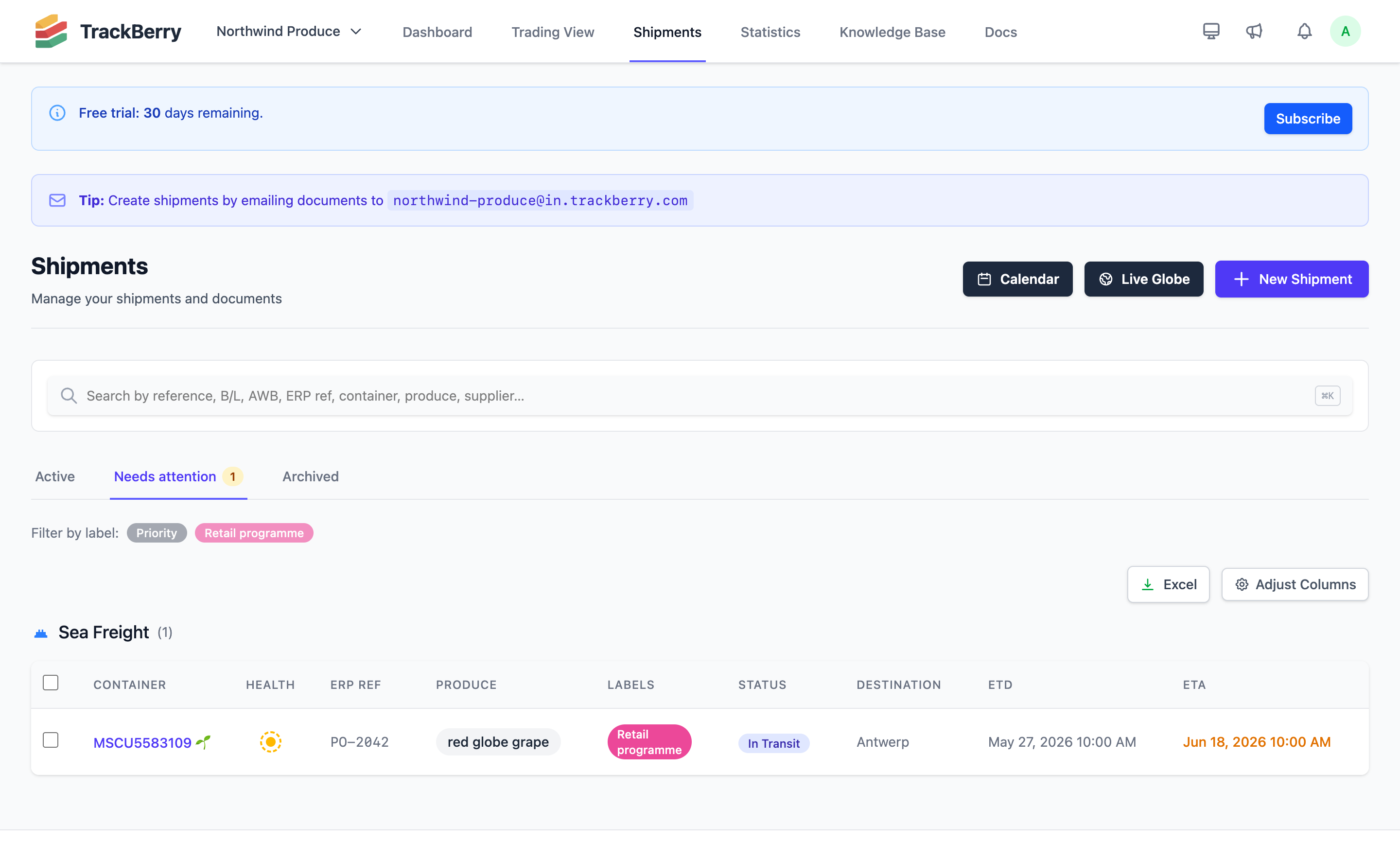
Above the shipments list, next to Active and Archived, a Needs attention tab appears whenever any of your shipments has an open alert. It carries an amber count badge and filters the list down to just those shipments.
The tab is hidden entirely when nothing needs attention, so you never see an empty list.
On the shipment page
When you open a shipment with open alerts, they appear as banners at the top of the page (amber for a warning, red for critical). Each banner shows the alert’s title, how long it has been going on, and a sentence explaining what to look at.
Notifications
When an alert is worth telling you about, Trackberry sends a Shipment stalled notification. It appears in your notification center like any other, and follows your push and email preferences for Alerts. See Tracking & Notifications for the channels.
Notifications are grouped: one message per shipment listing everything wrong with it, not one message per problem.
A rollover the carrier reports directly doesn’t wait for the daily sweep. It sends its own Rolled over notification as soon as Trackberry sees it, and isn’t repeated in the Shipment stalled message.
What Trackberry Watches For
Tracking
| Alert | Fires when |
|---|---|
| Tracking has gone dark | The tracking service hasn’t been able to reach the carrier for 36 hours. Critical at 72 hours. Air shipments only — the ocean service doesn’t report when it last reached the carrier, so ocean silence is covered by the alert below. |
| No carrier update | The carrier has published nothing new — after 1 day for air, 36 hours for ocean. Critical at double that, unless the vessel’s AIS position is still moving: a moving vessel proves the voyage is fine, so it stays a warning. |
| Carrier never reported | Registered with the tracking service 3+ days ago and the carrier has never published a single milestone, position or ETA. Usually means the reference is registered against the wrong carrier. Critical after a week. |
| Reference not recognized | The tracking service still doesn’t recognize the B/L or AWB number 2+ days after the shipment was created. Confirm the number with the shipper. Critical after a week. |
Schedule
| Alert | Fires when |
|---|---|
| Past its ETA | The ETA passed 2+ days ago and no arrival has been published. Critical after a week. |
| ETA has slipped | The current ETA is 5+ days later than the one first quoted. Critical at 14+ days. |
| Rolled over | A container was moved to a later ship and now departs 5+ days later than planned. Critical when it’s rolled a second time. It also fires when some containers on the shipment sailed more than a day ago while another is still waiting to load. Ocean shipments only. It stays up for up to two weeks after the roll, or until the shipment arrives. Tell your customer the arrival will move, and confirm the new booking with your forwarder. |
| Sitting at the terminal | Discharged at the destination terminal 5+ days ago with no gate-out recorded. Critical at 10+ days. It is worth checking for demurrage, customs holds or a missed collection. The alert fires regardless of your free days. To count down against your actual terms and get a warning before the last free day, see Demurrage & Free Time. |
Workflow
| Alert | Fires when |
|---|---|
| Waiting for approval | An emailed shipment has been sitting unapproved for 2+ days. Nothing is processed until someone approves or rejects it. Critical after a week. |
| Draft never validated | A shipment has been in draft for 5+ days. Drafts aren’t tracked, so no carrier updates are being collected for it. Critical at 14+ days. |
| Failing checks left unresolved | One or more quality checks have been failing for 3+ days. |
Trackberry also runs internal monitors for its own systems, such as documents stuck in processing or tracking polls that stopped running. Those are ours to fix and never appear in your alerts.
Which Shipments Are Monitored
The daily sweep covers shipments that are:
- not archived
- not in warehouse (the cargo has arrived and been received, so there is nothing left to watch)
- created in the last 6 months
Individual alerts narrow this further. Tracking alerts, for instance, skip road freight, shipments with no transport reference, shipments whose tracking you’ve manually overridden, and shipments whose tracking is already complete.
The Life of an Alert
- Opens. The sweep finds a problem for the first time. You’re notified.
- Stays open. Each day the sweep re-detects it and refreshes its summary. You are not notified again — nobody needs the same message every morning.
- Escalates. If the problem gets worse and crosses into critical, that’s news, so you’re notified again.
- Reminds. If it’s still open a week later and nothing has changed, you get one nudge.
- Resolves. As soon as the sweep stops detecting it (for example, the carrier published something, the draft was validated or the container gated out), the alert closes itself silently. There is nothing to dismiss.
Trackberry remembers that the alert was resolved. If the same problem comes back later, it is treated as a new alert and is not ignored.
Alerts are worked out from your shipment data, not saved as decisions. There is no “acknowledge” button, and none is needed: fix the underlying problem, or let the shipment move on, and the alert disappears on its own.
Frequently Asked Questions
Why did I get a “No carrier update” alert on a shipment that’s clearly fine?
Carriers publish milestones at port calls, so weeks can pass mid-ocean with nothing new. Trackberry’s thresholds are set to catch feeds that have stopped completely, but a quiet leg on an unusual route can still trigger them. Hover the freshness stamp on the shipment’s tracking card to see exactly which source stopped updating. See Container Tracking.
Can I turn individual alerts off?
Not per alert. You can turn off push and email for Alerts in your notification settings, which leaves them in the notification center, the Health column and the Needs attention tab.
Does monitoring cost anything?
No. It reads data Trackberry already has — it makes no carrier or tracking service calls of its own.
A shipment shows a dashed ring but no failing checks. Why is the dot amber?
The ring means monitoring has something to say; the color reflects the worse of checks and alerts. An amber dot with a dashed ring and all-green checks is a shipment whose paperwork is fine but which has stopped making progress.