
Checking Quality
Quality Inspection Reports
View extracted inspection scores, per-pallet results, and photos from third-party quality inspection reports.
4 min readLast updated
Goal
Read a third-party inspection report’s scores, defects, and photos alongside your own shipment data — instead of leaving it in a PDF nobody opens.
Before you start
- An inspection report on the shipment, attached by email, download link, or manual upload.
- Nothing to configure. Extraction is automatic once the report is attached.
Many exporters commission an independent quality inspection report (from companies like PPECB, SGS, or Bureau Veritas) before or during shipping — a survey of a sample of pallets that records a condition score, defects, and photos of the produce.
Getting an Inspection Report Into Trackberry
Inspection reports are picked up the same way as any other shipment document:
- Email attachment — forward or CC the report to your organization’s inbox and it’s attached to the matching shipment automatically.
- Download link — some inspection platforms only email a link instead of attaching the file (these reports can be 30–50 MB). Trackberry follows the link and downloads the report in the background. See the Inbound Email Processing guide for details.
- Manual upload — drag and drop the report onto the shipment like any other document.
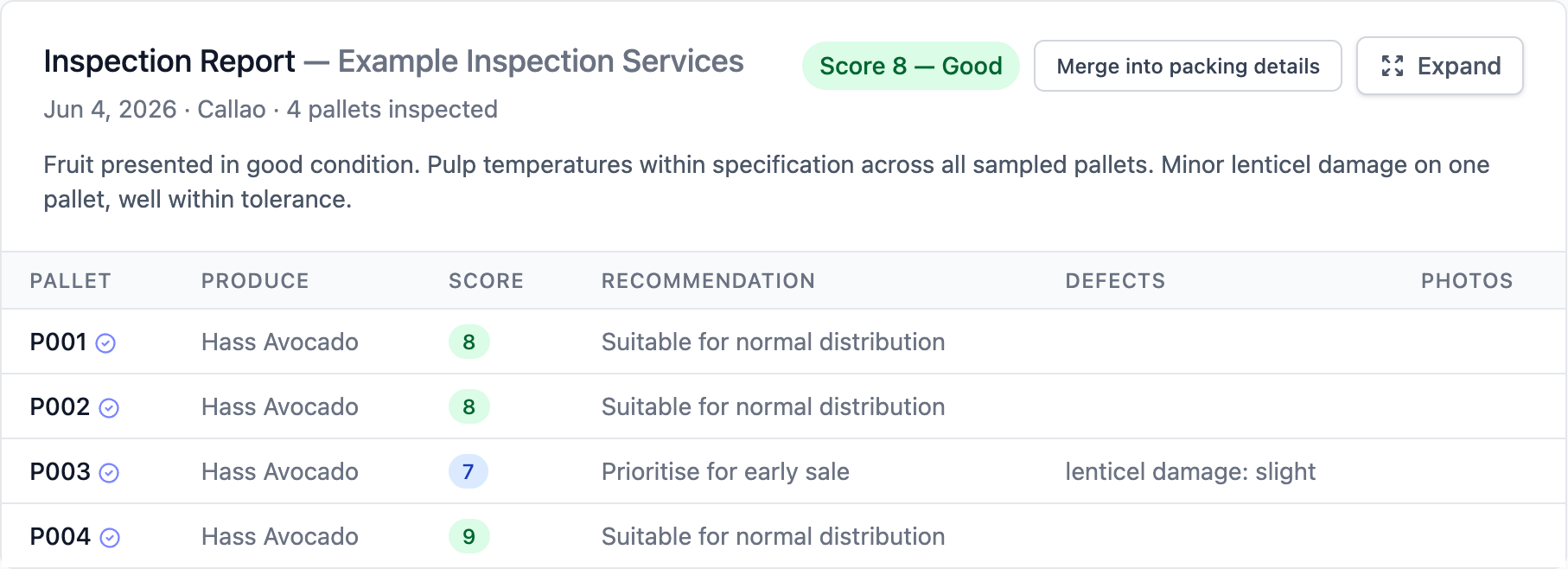
Once processed, an Inspection Report card appears on the shipment page.
What Gets Extracted
- Overall score and impression — most inspection companies use a 1–9 scale (9 = excellent, 1 = discard); Trackberry also understands a free-text verdict (e.g. “Bueno”, “Reject”) when no numeric score is given.
- Per-pallet results — score, defects observed, and recommendation for each sampled pallet/lot, when the report breaks results down that way.
- Photos — every photo embedded in the report is extracted and attached either to the specific pallet it documents, or to a general gallery on the report card when it can’t be tied to one pallet.
- General remarks — free-text notes from the inspector, shown in full (not truncated) on the report card.
Matching Results to Your Pallets
When a report numbers its samples using the same pallet codes as your packing list, Trackberry reconciles the two automatically — the relevant inspection columns (score, recommendation, defects, photos) then also appear directly on the shipment’s packing table, next to the matching pallet.
Inspection companies often use their own internal sample numbering (e.g. “0083”) instead of your packing list’s pallet codes. This isn’t a bug: when no match can be made, the packing table doesn’t show inspection columns for that shipment. The full report (with all its photos and results) still shows on the Inspection Report card itself.
Merge vs. Separate Layout
You can choose how inspection data is displayed relative to the packing table, using the two buttons in the Inspection Report card header:
| Option | What it does |
|---|---|
| Merge into packing details | Appends score, recommendation, defects, and photo columns directly onto each pallet’s row in the packing table. The Inspection Report card shrinks to just the header, general remarks, and any unmatched photos. |
| Separate from packing details | Keeps the full report, including a table of every pallet’s inspection result, in its own card, and leaves the packing table unchanged. |
This is a personal display preference (saved per user), so switching it doesn’t affect what your teammates see.
Viewing Photos
Click any photo thumbnail to open a full-size lightbox with previous / next navigation and an Escape-to-close shortcut — useful for reviewing labels, barcodes, or defects up close across all photos in that gallery.
Quality Score Badge
Once a shipment has at least one inspection report, a compact A–D letter grade badge appears next to it:
| Grade | Meaning |
|---|---|
| A | Excellent / good (score 8–9) |
| B | Normal / acceptable (score 6–7) |
| C | Problematic (score 5) |
| D | Unacceptable / reject (score 1–4) |
The badge is color-coded (green → red) and shown as an optional column in three places:
- Shipments list — see Customizing Columns to add it.
- Dashboard
- Trading View — shown at the pallet level next to each pallet number, using that pallet’s own inspection result rather than the shipment-wide score.
Hover over the badge to see the full numeric score, the inspection company and date, and the report’s general remarks without leaving the page.
When a shipment has more than one inspection report, or a report has per-pallet results, the badge reflects the average score across whatever’s available (report-level score if stated, otherwise the average of its per-pallet scores).
Relationship to Quality Checks
Inspection reports are a data source, not a validation rule — they don’t participate in the pass/warning/fail Quality Checks that run automatically after extraction. Think of Quality Checks as validating your own data for consistency, and Inspection Reports as an independent, third-party assessment of the produce itself.