
Customizing & Admin
Customizing Filters
Enable optional filters on the Dashboard and Trading View to narrow shipments by grower, shipper, origin, variety, and more.
2 min readLast updated
Goal
Add the filters your workflow needs (grower, shipper, origin, variety) to the Dashboard and Trading View, beyond the three shown by default.
Before you start
- Any role can enable filters for themselves; preferences are per user.
- Admin or Owner role is required to change the organization default.
- Data that populates them. Only values present in your active shipments appear as options; an empty filter shows “No data”.
The Dashboard and Trading View show Destination, Produce, and Arrival by default.
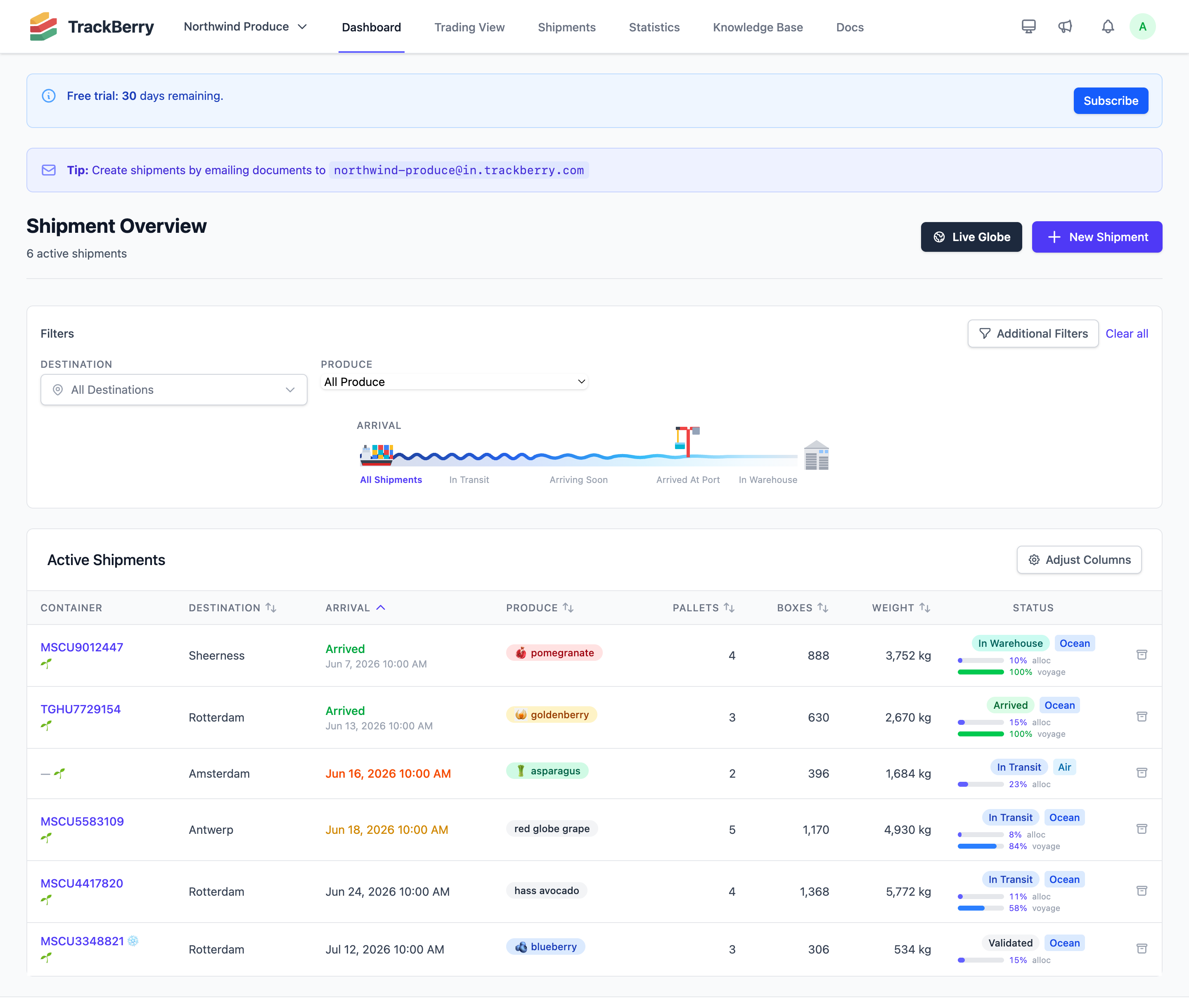
Enabling Additional Filters
- Go to the Dashboard or Trading View
- Click Additional Filters (the funnel icon) in the top-right corner of the filter bar
- Check the filters you want to enable — changes save automatically and the page reloads
The number of enabled optional filters is shown as a badge on the button.
Available Optional Filters
| Filter | What it filters |
|---|---|
| GGN / Grower | GGN code on packing lines — useful for GlobalG.A.P. compliance |
| Shipper | Consignor name (the seller or exporter on the shipment) |
| Receiver | Consignee name (the buyer or importer on the shipment) |
| Origin | Country of origin of the shipment |
| Transport | Transport mode: Ocean, Air, or Road |
| Variety | Produce variety (e.g., Red Globe, Hass, Williams) |
| Category | Quality category on packing lines (e.g., Cat I, Cat II, Extra) |
| Pack Format | Packaging type on packing lines |
Only values that exist in your active shipments are shown as options — empty filters display “No data”.
Setting Organization Defaults (Admins)
Admins configure which optional filters are enabled by default for the whole organization through the same Additional Filters picker. What an admin enables becomes the starting point for team members who haven’t chosen their own filters.
A member’s own choice takes priority. Once a member changes their own filter selection, later changes to the organization default no longer affect them.
Disabling Filters
Open Additional Filters again and uncheck any filter to remove it from the filter bar. Unchecked filters no longer appear and do not affect shipment results.
Tips
- GGN filter is particularly useful for organizations handling certified growers — you can quickly narrow to all stock from a specific GlobalG.A.P. number.
- Shipper + Produce together let buyers isolate stock from a specific supplier for a specific commodity.
- Transport is handy for organizations managing both ocean and air freight — quickly isolate air shipments with a tighter arrival window.
- Filters work in combination: all active filters are applied together (AND logic).