
Tracking Shipments
Calendar
View shipments by arrival date and sync arrivals to Outlook, Google Calendar, or Apple Calendar.
2 min readLast updated
Goal
See what’s arriving and when, and keep those arrivals in the calendar app your team already uses.
Before you start
- Any role can view the Calendar page.
- Admin or Owner role is required to generate or revoke the external subscription link.
- A calendar app that subscribes to a URL — Outlook, Google Calendar, and Apple Calendar all do.
Viewing the Calendar
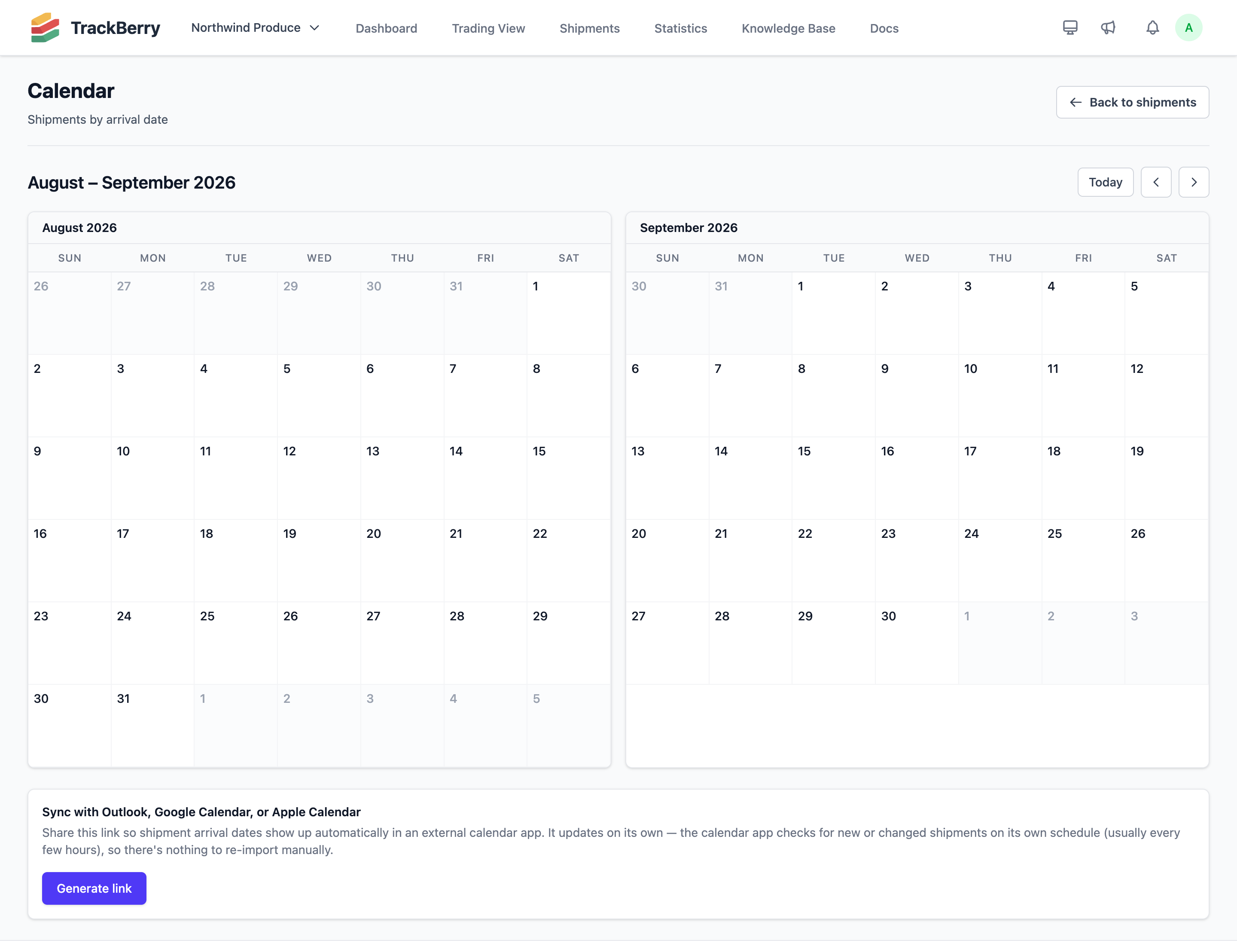
Open Calendar from your organization menu. Each day shows the shipments whose ETA (or, once available, actual arrival date) falls on it, labeled with their container/AWB reference, destination, and produce.
- Two months are shown side by side.
- Use the arrows to move a month at a time, or click Today to jump back to the current month.
- Click a shipment entry to open its full shipment page.
Syncing to an External Calendar App
Admins and owners can generate a personal subscription link that keeps an external calendar app (Outlook, Google Calendar, Apple Calendar) in sync with your organization’s shipment arrivals automatically — no manual export or re-import needed.
Generating the Link
- Open Calendar and scroll to Sync with Outlook, Google Calendar, or Apple Calendar.
- Click Generate link.
- Copy the link. On a Mac or iPhone, you can instead click click here to subscribe directly to open your default calendar app and add the subscription in one step.
Add the copied link to your calendar app using its “Subscribe from web” /
“From URL” option (Outlook, Google Calendar) or by opening the
webcal:// link directly (Apple Calendar).
How It Stays Up to Date
The calendar app you subscribed with checks the link on its own schedule (typically every few hours) and pulls in any new or changed shipments — you never need to re-download or re-import anything.
Revoking Access
If the link is shared with someone who shouldn’t have it anymore, click Revoke link on the Calendar page. This immediately invalidates the old link; anyone still subscribed to it stops receiving updates. Generate a new link afterwards if you still want to sync.
Only admins and owners can generate, view, or revoke the sync link.