
Planning & Selling
Pallet Pre-allocation
Reserve boxes from incoming pallets for specific customers before the shipment arrives.
6 min readLast updated
Goal
Assign boxes from an incoming shipment to specific customers before the cargo arrives, so distribution is already decided when it does.
Before you start
- A shipment with packing data. Pre-allocation works at the packing-line level, so the packing list must have been extracted first.
- Customer names. Allocatees are free text — whatever your team calls the buyer. Consistent spelling makes the export cleaner.
How It Works
Each packing line in a shipment has a known box count. Pre-allocation lets you split those boxes among multiple customers (called allocatees).
For example, a packing line with 20 boxes of Hass Avocado, calibre 14 could be allocated: - 10 boxes → Customer A - 5 boxes → Customer B - 5 boxes → Customer C
Allocating Boxes
On the shipment page, each packing line shows an allocation button:
| Button State | Meaning |
|---|---|
| Allocate (gray) | No allocations yet |
| 5/20 (amber) | Partially allocated — 5 of 20 boxes assigned |
| Full (green) | All boxes allocated |
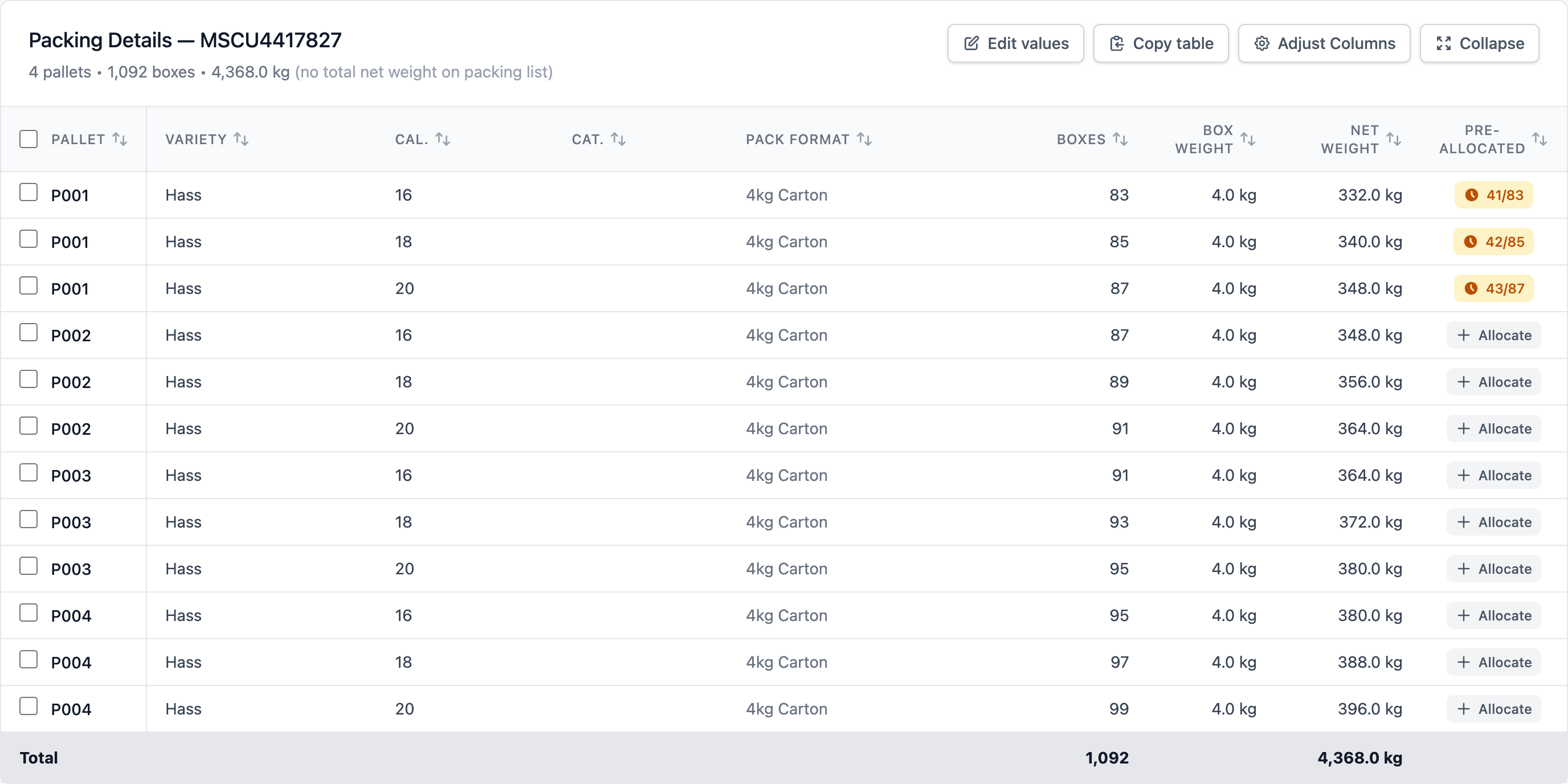
Click the button to open the allocation popover:
- Enter the customer name in the text field
- Enter the number of boxes to allocate
- Optionally enter a Price, see Pricing Pre-allocated Boxes
- Click Add Allocation
The allocation appears in the list. You can add multiple allocations to the same packing line until all boxes are assigned.
Pricing Pre-allocated Boxes
An allocation can carry the price your customer is tentatively getting, so you can see what a container is likely to sell for before it is sold. The price is optional and tentative until the goods are sold.
In the popover, the Price field takes a number, with a currency beside it: USD, EUR, GBP, or the currency the shipment was invoiced in. A new price starts in the currency last used on that shipment, so every customer on a container is priced alike. Above the field, a Per box and Total switch sets what you are typing. Traders often quote a lump sum rather than a rate, so type the total for the boxes if that is what you have. A line under the field works out the other figure as you type, for example “= €14.20 / box” or “= €600.00 total”. Trackberry stores the price per box, so adding boxes later or carrying the allocation onto a corrected packing list keeps the rate.
To add or change a price on an existing allocation, click Add price or Edit price next to it and Save. When every allocation on a line is priced in the same currency, the popover also shows the line’s Tentative value.
The Value column
The shipments list has an optional Value column. Turn it on with Columns, see Customizing Columns. It shows what a shipment is likely to be worth:
- Pre-allocated: the sum of the priced pre-allocations (boxes times price per box), once there are any. Allocations without a price don’t count.
- Pre-allocated + invoice: when priced allocations cover only some of the boxes, the remaining boxes are valued at the invoice’s price per box, which is the invoice total spread over the shipment’s boxes. Hover the figure to see how many boxes each part covers.
- Partly priced: the same, but the invoice total is missing or in another currency, so the figure is the priced allocations alone.
- Invoice: the exporter’s invoice total, while no allocation is priced.
- Mixed currencies: shown instead of an amount when priced allocations are in more than one currency, because they can’t be added up.
The Excel download of the shipments list writes the value as a number in its currency. See Exporting Data.
Allocating Several Lines at Once
To give a whole pallet, several pallets or a whole container to one customer, select the lines first:
- Tick a line’s checkbox, or click anywhere else on its row. Shift-click selects every line in between.
- Click a pallet number to select every line of that pallet.
- Tick the checkbox in the table header to select every line of the container.
A bar appears at the bottom of the window with the selection’s boxes, weight and value. Click Pre-allocate…, enter the customer (names you have used before are suggested) and choose which boxes go to them:
- Only the boxes not pre-allocated yet — Earlier splits stay; the customer gets what is left on each line.
- Every box, replacing the existing pre-allocations — The lines go to this customer alone.
The panel takes a Price too, as a Total by default: what a container or a few pallets are sold for. Trackberry splits the total across the selected lines by their boxes, which gives one per-box rate for all of them. The price goes on this customer’s allocation on every selected line, so the bar can also reprice boxes the customer already holds. Leave the price empty and existing prices stay as they are. A price that isn’t a number is refused before anything changes.
The bar then says how many lines changed. A line that was already fully pre-allocated is left as it was, apart from its price.
Clear pre-allocations in the same bar removes every allocation on the selected lines (it asks for confirmation first).
Changing a Field on Several Lines
Set field… in the same bar sets one value on every selected line. Choose the Field, type the Value and click Apply:
| Field | Use it for |
|---|---|
| GGN | One grower’s GlobalG.A.P. number on all its pallets. It is checked for a valid format, and the GGN Present check runs again |
| Box brand | The brand on the boxes. If Box Brand Present is on, it runs again |
| Comment | A note on the line, such as “soft, sell first” |
| Category | The quality category, for example after an inspection |
Leave Value empty to clear a comment or a category. Each line is corrected the way an inline edit would be, so the value survives a re-import of the packing list.
Exporting Selected Lines
Export in the bar downloads the selected lines as an Excel file, for an offer to a customer or a pick list. Rows follow the table’s order, so sort the table first. The columns are pallet, container, produce, variety, calibre, category, GGN, pack format, boxes, box weight, net weight, comment and who the line is pre-allocated to. Weights are in your organization’s weight unit. Viewers can export what the table shows them. This is not an ERP format, see Exporting Data for those.
Validation
- The box count for each allocation must be greater than 0
- The total allocated boxes across all allocations on a packing line cannot exceed the line’s available box count
- Error messages appear inline if you try to over-allocate
Real-time Updates
All allocation changes appear instantly. If multiple team members are viewing the same shipment, they’ll see allocation changes in real time — no need to refresh the page.
Audit Trail
All pre-allocation actions are recorded in the shipment’s audit log:
- Allocation created (who, how many boxes, which customer)
- Allocation updated
- Allocation deleted
- Lines pre-allocated from the selection bar, naming the customers whose boxes were replaced
- Allocations cleared from the selection bar, naming the customers they belonged to
- Allocations repriced from the selection bar
- Values set or cleared on selected lines